Writing brief
Create this as a standalone scheduled job. It summarizes the best available recent ChatGPT account context without claiming complete account access.
 solum share
Connect ChatGPT Web, Codex, Claude, or Hermes. Brief exchange remains available, while the Memory tab controls your user-owned long-term memory.
Each AI authorizes its own connection; memory permissions stay off until you enable them.
 ChatGPT WebWeb · recent account context · 2 steps · about 5 minutesConnectedReview setup
Connect the web plugin, then create a recent-activity writing job and an ingesting job. This plugin is for ChatGPT Web; it does not install the local MCP used by Codex.
Custom MCP write actions are currently available to eligible ChatGPT workspaces. Computer History requires the ChatGPT macOS app, Memories, and a supported Pro, Business, or Enterprise account; the connector still works without it, with narrower coverage.
Confirmed by a live MCP call. You can skip the connection instructions.
In ChatGPT on the web, open Settings → Security and login, then turn on Developer mode.
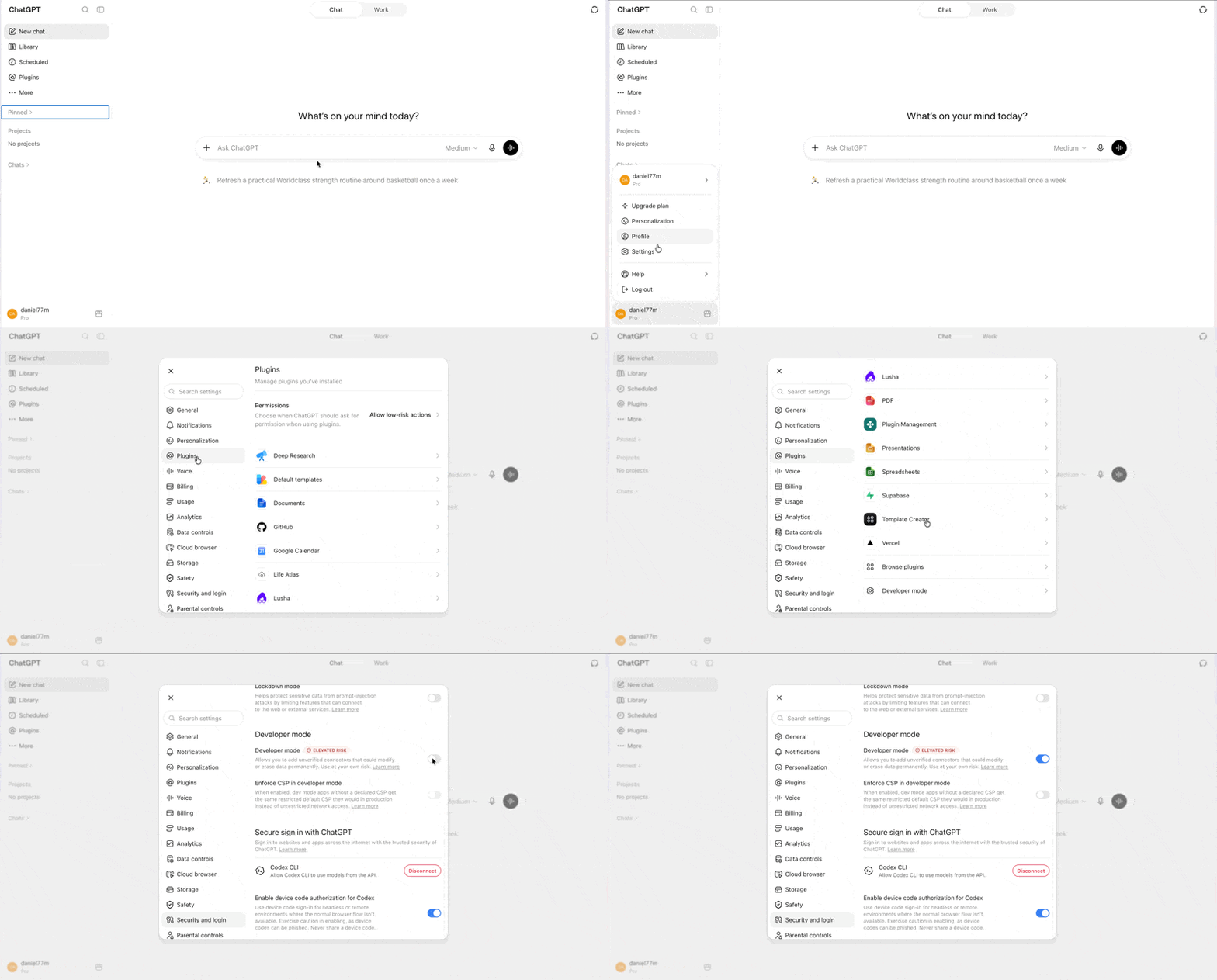
Open Plugins from the left sidebar, choose the + button, and keep Server URL selected under Connection.
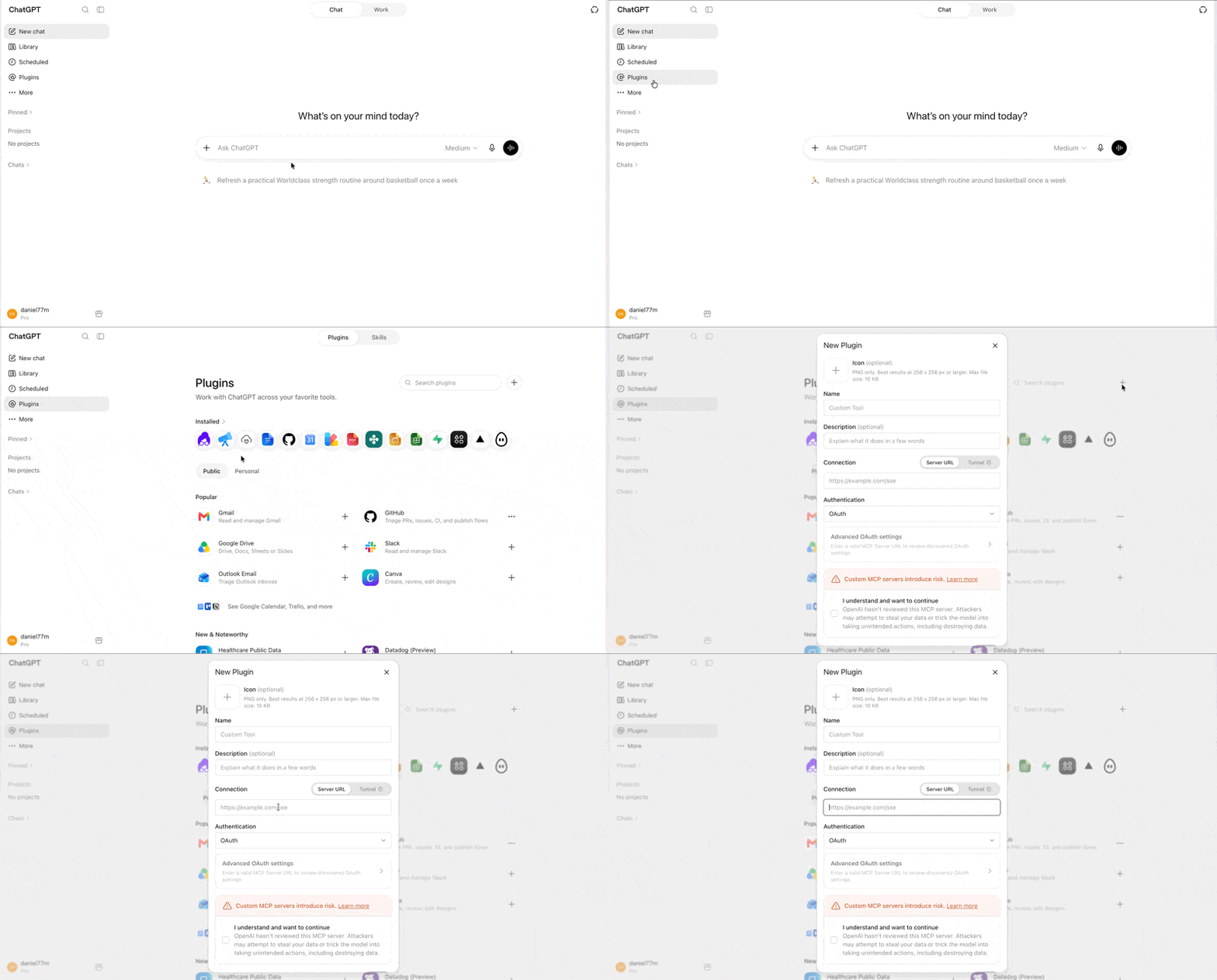
Name it Solum Share, paste the MCP address below, choose OAuth under Authentication, acknowledge the developer-mode warning, and create the plugin. Leave Advanced OAuth settings on the discovered defaults.
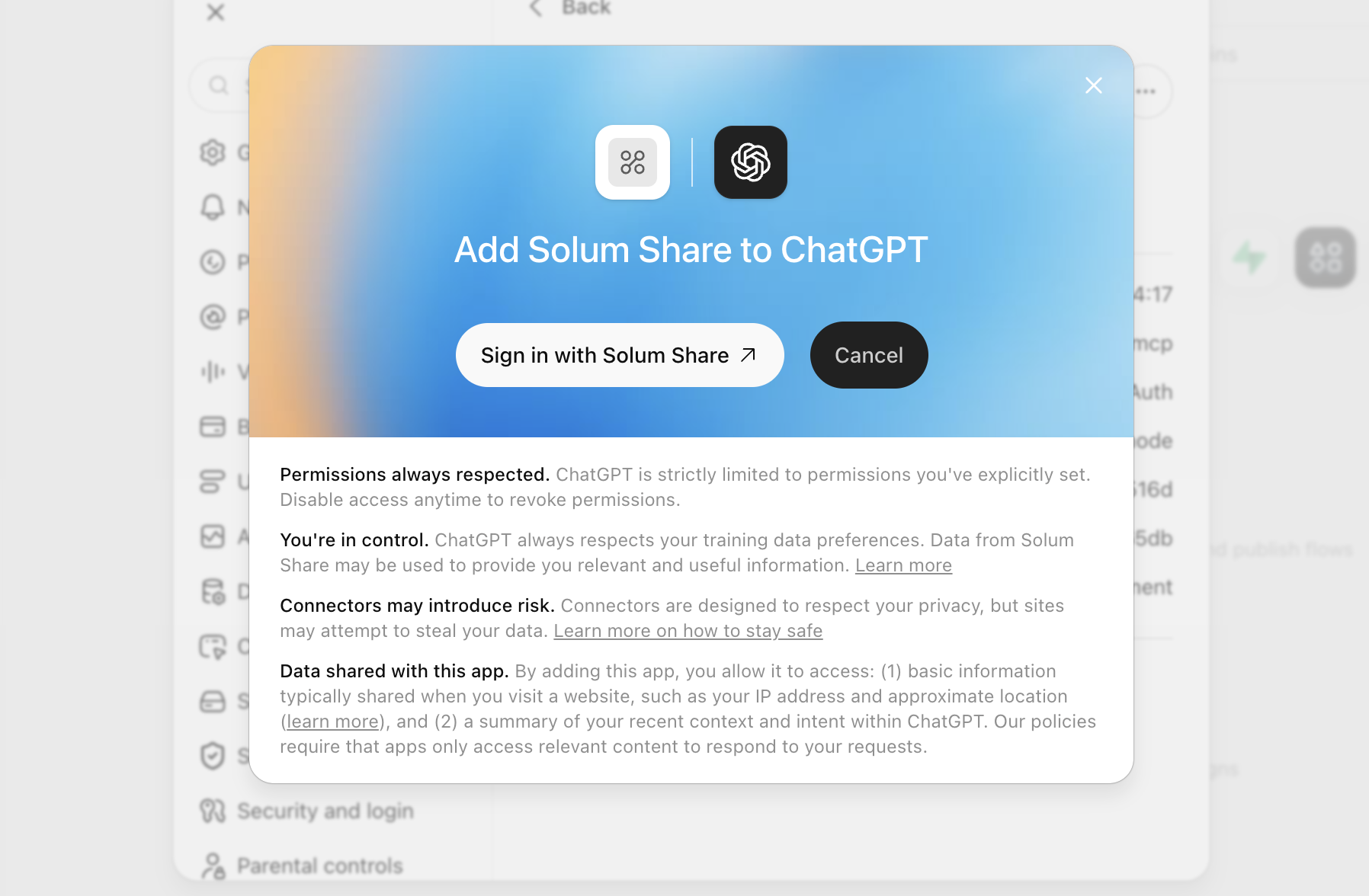
Choose Sign in with Solum Share, sign in to your Solum Share account, review the permissions, approve access, and return to ChatGPT.
https://solumshare.com/mcpAuthentication: OAuth. “None” is only a client-auth method inside advanced OAuth settings; it does not mean the plugin should be unauthenticated.
Make these as two separate jobs so each AI writes first, then ingests updates from the other one.
Open Scheduled in ChatGPT Web and create both jobs below. For the broadest recent-activity coverage on macOS, first enable Memories and Computer History in the ChatGPT desktop app and choose which apps and sites may contribute.
No supported ChatGPT job can scan every conversation on an account. This job uses only recent activity and context ChatGPT exposes to that run—such as Computer History, Memories, connected sources, and the saved task prompt. Computer History starts collecting only after you enable it.
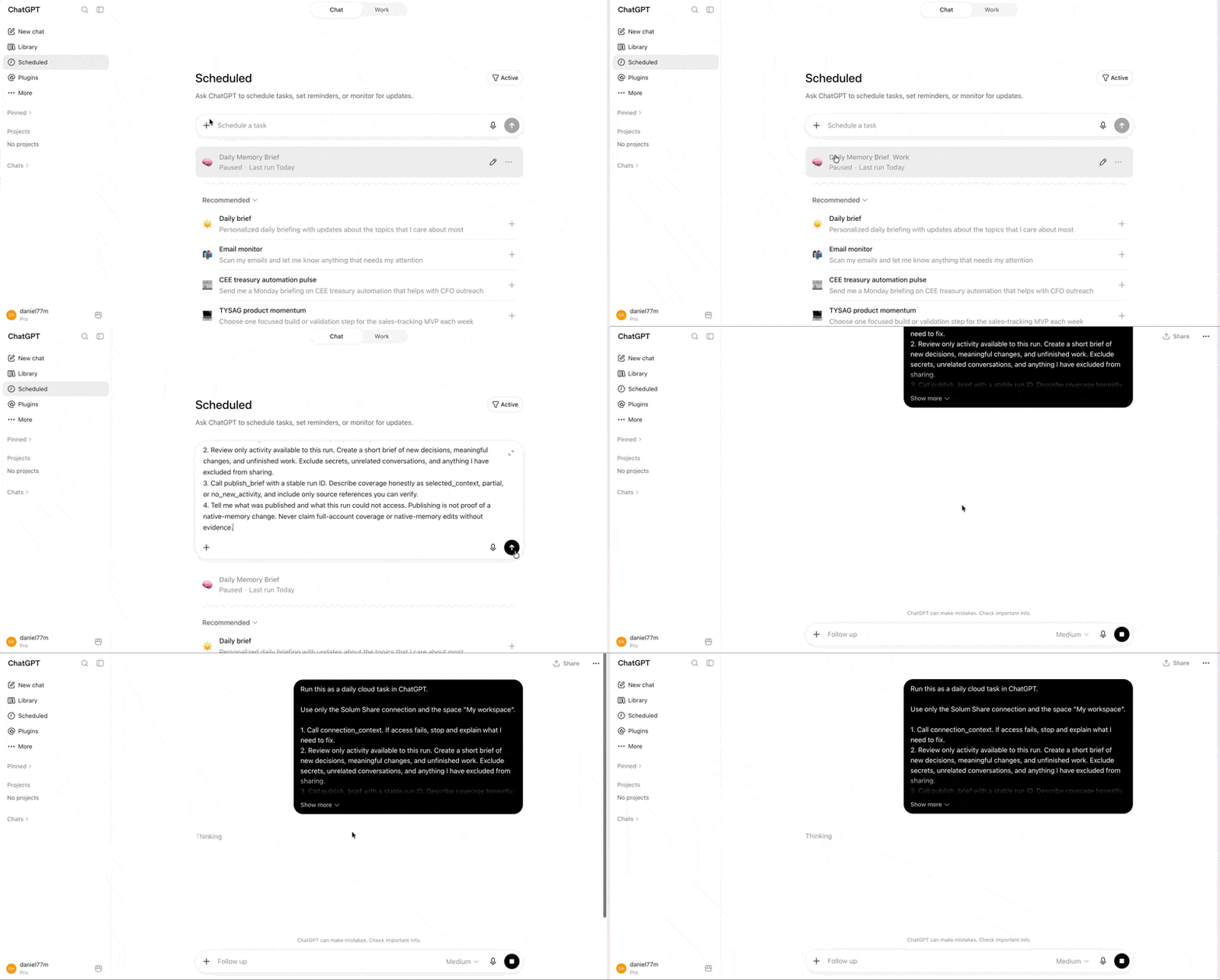
Create this as a standalone scheduled job. It summarizes the best available recent ChatGPT account context without claiming complete account access.
Create this as a second standalone job, about 30 minutes after the writing job.
What happens next The MCP connection is ready. After the writing and ingesting jobs run, new briefs appear in Activity.
Schedules and permissions stay in ChatGPT Web. These controls only change access to Share.
ChatGPT CodexInstalled · local Codex sessions · 2 steps · about 5 minutesConnectedReview setupConnect Solum Share once on this Codex host, then create a local writing job and an ingesting job. The desktop app, Codex CLI, and IDE extension on the same host share this MCP configuration; ChatGPT Web does not.
One MCP setup covers the desktop app, Codex CLI, and IDE extension on this Codex host. Local scheduled jobs still run only while this computer is on and the ChatGPT desktop app is running. Reading all local Codex sessions is intentionally broad access on this machine.
Confirmed by a live MCP call. You can skip the connection instructions.
In the ChatGPT desktop app, open Settings → MCP servers, then choose Add server.
Name it Solum Share, choose Streamable HTTP, paste the MCP address below as the URL, then save and restart the app.
Back in MCP servers, choose Authenticate for Solum Share, sign in, approve this Codex connection, then type /mcp in a Codex chat to confirm it is available.
https://solumshare.com/mcpMake these as two separate jobs so each AI writes first, then ingests updates from the other one.
In the ChatGPT desktop app, open a Codex chat and ask it to create each scheduled job below. Grant the writing job read access to ~/.codex/sessions and allow network access to Solum Share. Keep this computer on and the app running when the jobs are due.
The writing job scans Codex session files from the last day under ~/.codex/sessions on this Codex host. That can cover local Codex work across projects on this machine, but not ChatGPT Web chats, Codex sessions on another machine, deleted sessions, or cloud activity that was never stored here.
Create one standalone local scheduled job. It scans recent Codex sessions on this machine, excludes secrets, and publishes one consolidated brief.
Create a second local scheduled job about 30 minutes later so Codex can retrieve briefs published by your other connected AIs.
What happens next The MCP connection is ready. After the writing and ingesting jobs run, new briefs appear in Activity.
Schedules and permissions stay in ChatGPT Codex. These controls only change access to Share.
 ClaudeCloud Cowork · 2 steps · about 5 minutesConnectedReview setup
Add Solum Share as a custom connector, then create a writing job and an ingesting job in Claude Cowork.
Scheduled Cowork tasks require a paid Claude plan. On Team or Enterprise, an owner may need to add the connector for the organization first.
Confirmed by a live MCP call. You can skip the connection instructions.
In Claude, open Customize → Connectors.
Choose + → Add custom connector, then paste the Solum Share MCP address below and choose Add.
Find Solum Share in your connectors and choose Connect to complete authorization.
https://solumshare.com/mcpMake these as two separate jobs so each AI writes first, then ingests updates from the other one.
Open Cowork → Scheduled → New task → Set up manually, then create each job below separately.
Claude can review only the Cowork context, files, and connected sources available to the scheduled run. It must not describe unavailable conversations or files as no account activity.
Name it “Solum Share — Write brief” and schedule it daily at a time that suits you.
Name it “Solum Share — Ingest briefs” and schedule it about 30 minutes after the writing job.
What happens next The MCP connection is ready. After the writing and ingesting jobs run, new briefs appear in Activity.
Schedules and permissions stay in Claude. These controls only change access to Share.
 Hermes AgentInstalled · local agent sessions · 2 steps · about 5 minutesNot set upSet up
Add Solum Share as a remote HTTP MCP server. Hermes can also use a memory-provider hook for reliable post-turn sync while keeping its built-in memory enabled.
Hermes Agent must be running on a host that can reach https://solumshare.com. Automatic post-turn capture requires the optional local memory-provider adapter; MCP calls alone remain model-driven.
This gives Hermes Agent permission to send and retrieve your briefs.
Follow Hermes Agent’s remote MCP guide on the computer where Hermes runs.
Name it Solum Share, use the MCP address below, and complete OAuth authorization in your browser.
Start a fresh Hermes session and ask it to call connection_context. Solum Share marks the connection live after that call succeeds.
https://solumshare.com/mcpMake these as two separate jobs so each AI writes first, then ingests updates from the other one.
Use the memory instructions in the Memory tab for chat-driven sync. For deterministic capture after every completed turn, install the Solum Share memory-provider adapter on the Hermes host once its local configuration is generated.
Hermes can sync completed local turns through its memory-provider hooks. It cannot read chats from ChatGPT or Claude unless those products separately send them to Share.
Use a local Hermes task or memory-provider sync_turn hook to submit completed turns and memory proposals.
Use prefetch at session start to retrieve approved Solum Share memory before Hermes answers.
What happens next Connection status updates automatically after the first successful MCP call. Then the writing and ingesting jobs keep Share current.
The last briefs sent through Share.
A little more room for launchClaude · Sep 3, 5:00 AMRetrievedThe launch has moved to 18 September. Use the extra week to finish the onboarding flow and test the first shared brief. Keep the initial release focused on three distinct sources.
Retrieved by ChatGPT Web. Retrieval does not verify a native-memory change.
Keep the first connection simpleChatGPT Web · Sep 2, 5:15 AMRetrievedThe onboarding draft now starts with one workspace, one connection, and a short test brief. Add the second AI after the first publication succeeds.
Retrieved by ChatGPT Codex. Retrieval does not verify a native-memory change.
One place for the important bitsClaude · Sep 1, 5:00 AMWaitingShare decisions, useful preferences, and unfinished work. Leave unrelated conversations out. Every brief should say where its information came from.
No retrieval recorded yet. Retrieval does not verify a native-memory change.